Last tested: May 2026 · Tested by: Faz, founder of AI Image Generator NSFW
Free img2img with Flux. No login required
Upload an image, write a prompt, get a transformed output in seconds.
Try img2img Free →AI image-to-image generators take an existing photo or image and transform it based on your text prompt. Instead of generating from scratch, the AI uses your input image as a starting point and applies changes. Here are the best free NSFW image-to-image tools in 2026.
Hands-On Test: Free img2img Outputs
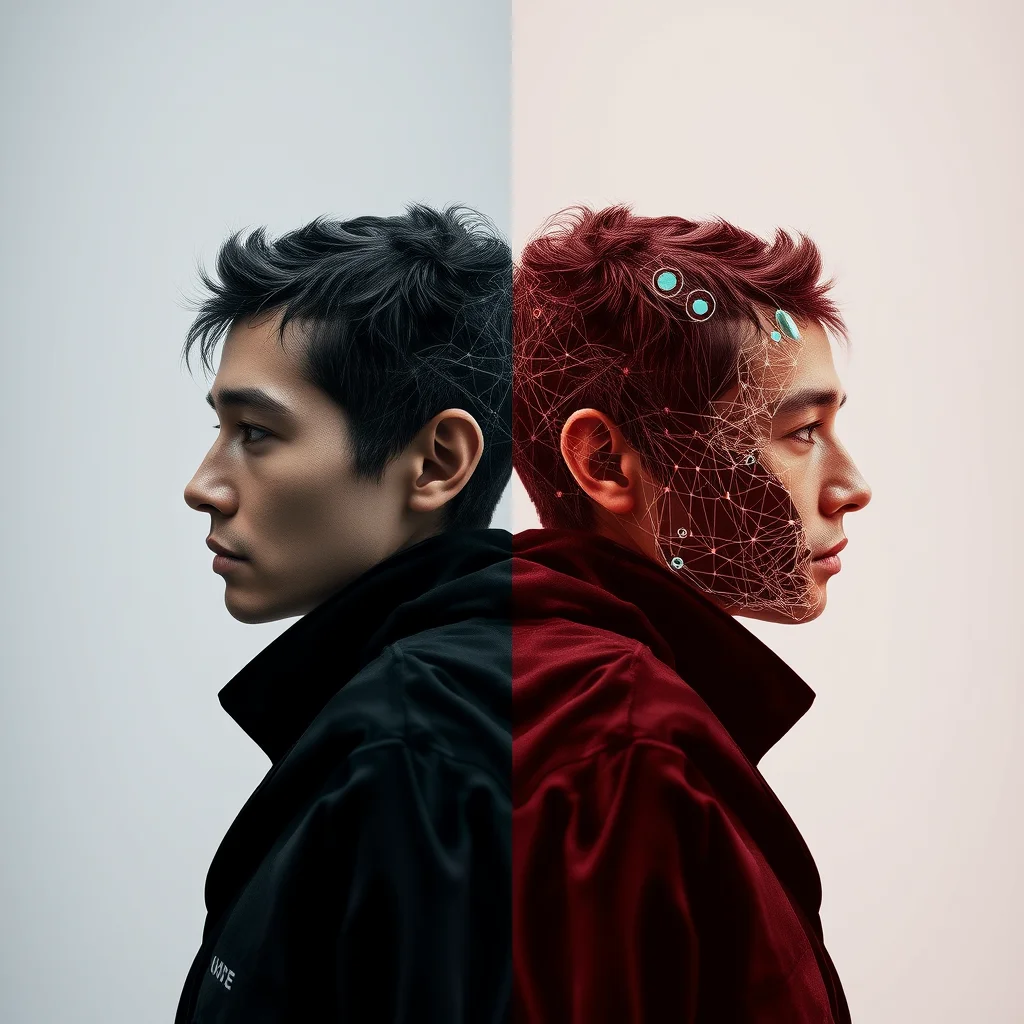
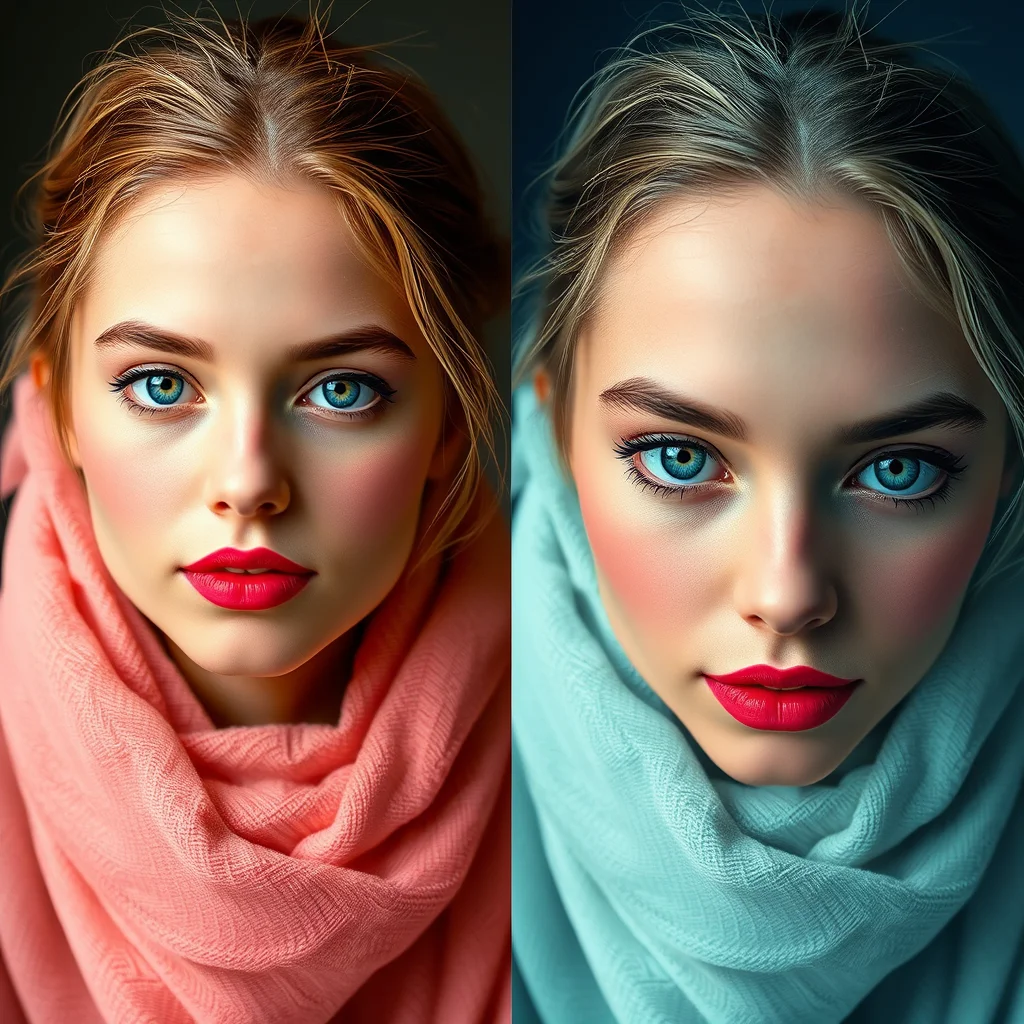
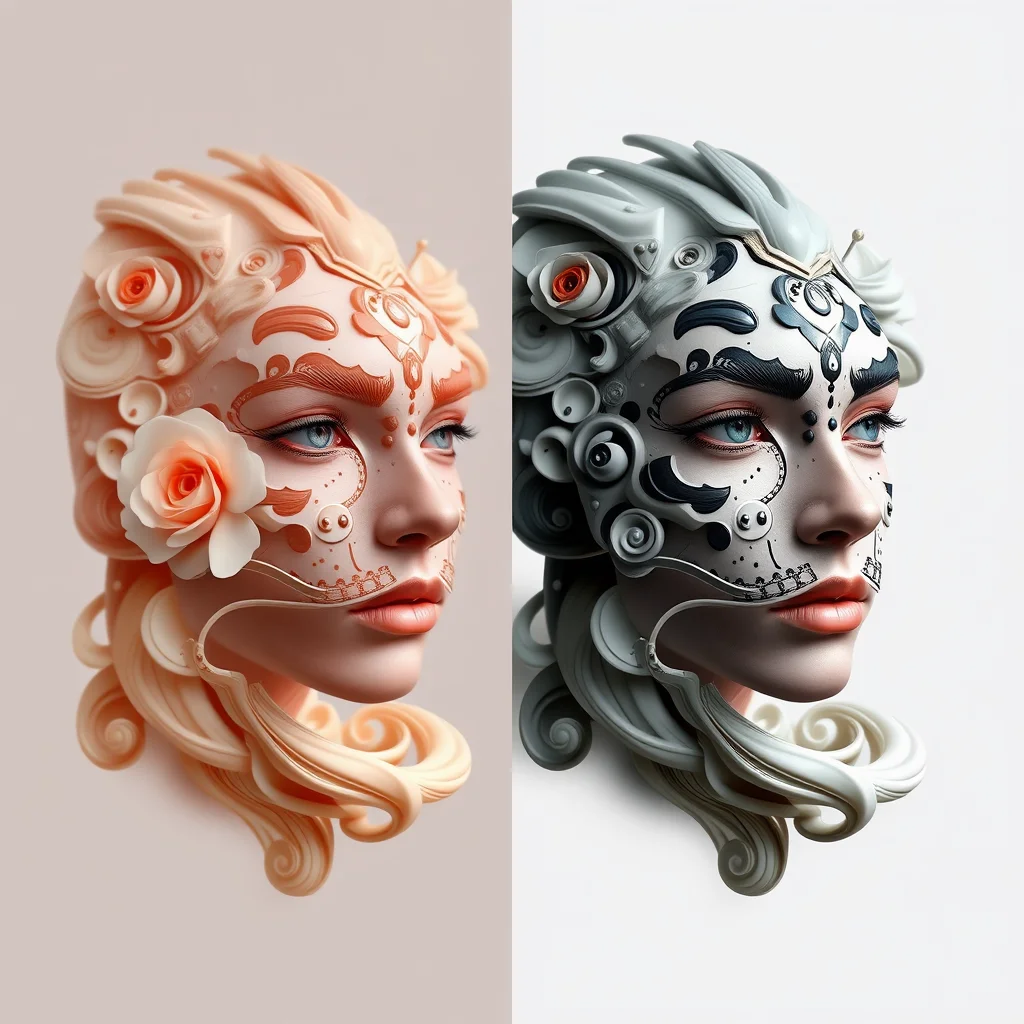
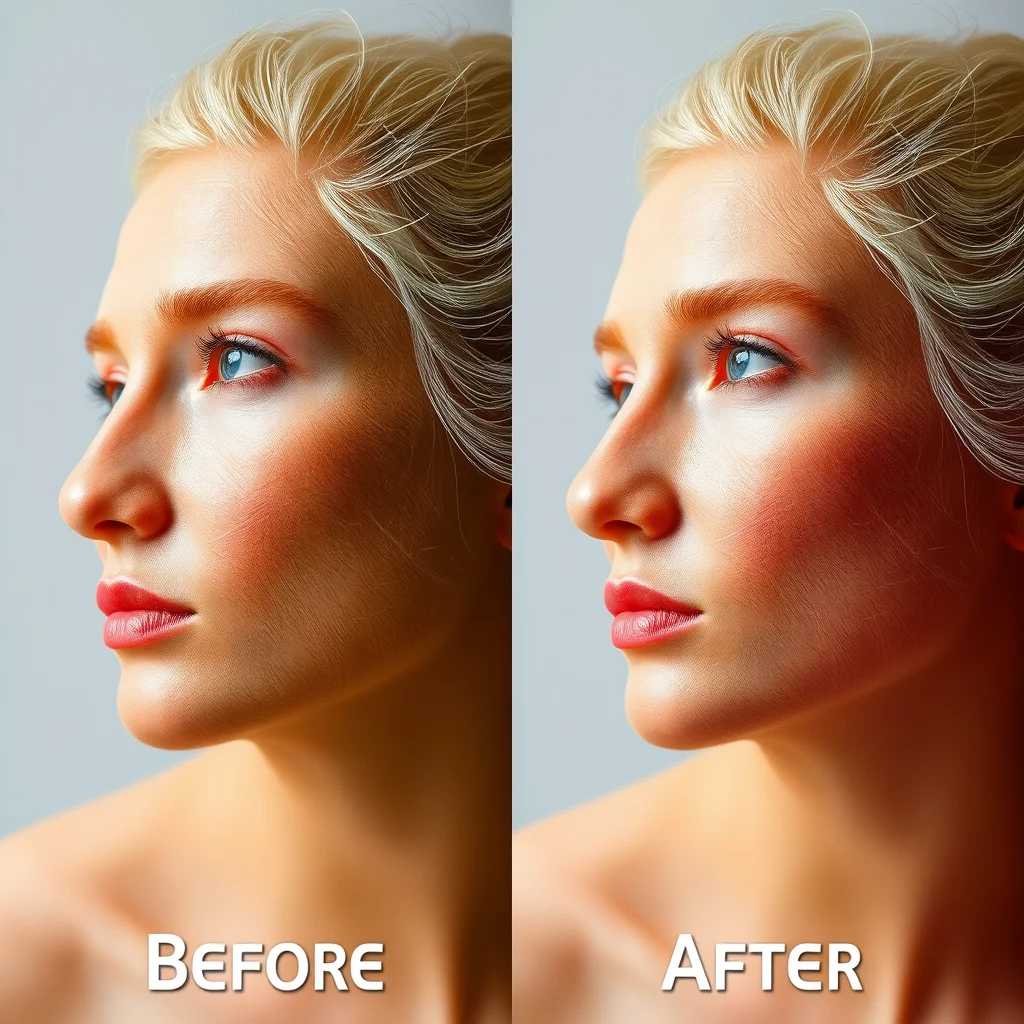
Four image-to-image transformations we tested in May 2026 using our free Flux generator. All at 1024×1024, ~20 seconds each:
Best Free NSFW Image-to-Image Generators
1. AI Image Generator NSFW (Free, No Login, Flux-Powered). Our Pick
The tool we built and use daily. Browser-based img2img using Flux Schnell. Upload an image, type a transformation prompt, get a 1024×1024 output in 15-30 seconds. No login. No watermark. No daily cap. Adjustable denoise strength (0.2 to 0.9) gives fine control over how much the source is preserved vs reimagined.
- Best for: quick transformations, style transfers, refining text-to-image outputs
- Free tier: unlimited (queues during peak hours)
- Login required: No
- Output resolution: 1024×1024
- Model: FLUX.1 Schnell
2. Stable Diffusion img2img (Local)
Every local Stable Diffusion interface (Automatic1111, ComfyUI, Forge) includes an img2img mode. Upload any image, write a prompt describing the changes you want, and adjust the denoising strength to control how much the AI modifies the original. Completely free, no restrictions.
- Denoising 0.3-0.5: Subtle changes, keeps most of the original
- Denoising 0.5-0.7: Moderate transformation, recognizable source
- Denoising 0.7-1.0: Heavy changes, uses original only as composition guide
3. PixelBunny.ai
One of the few online platforms offering free image-to-image with NSFW support. Upload your image and describe the transformation. Daily free credits included.
4. Mage.space img2img
Mage includes image-to-image on their free tier. Upload an image, add a prompt, and generate. Queue times apply during peak hours.
Image-to-Image vs. Text-to-Image: When to Use Which
- Text-to-image. Best when you want to create something from scratch. Use our free generator for this.
- Image-to-image. Best when you have a reference photo or image and want to modify it (change style, add elements, transform the scene)
The Critical Setting: Denoise Strength
If your img2img results aren’t matching what you want, denoise strength is almost always the issue. Here’s the rule:
- 0.2-0.4: output stays close to source. Use for subtle style tweaks, color shifts, lighting changes.
- 0.5-0.7: sweet spot for most transformations. Source structure preserved, but prompt has clear influence.
- 0.8-0.9: source is mostly a composition reference. Prompt dominates the output.
- 0.95+: behaves like text-to-image. Your source becomes nearly irrelevant.
Most “img2img isn’t working” complaints come from people stuck at 0.3 denoise wondering why the output looks identical to the input. Crank it to 0.7 and try again.
Tips for Better Image-to-Image Results
- Start with denoising at 0.5 and adjust up or down based on results
- Your prompt matters. Describe what you want the final result to look like, not the changes
- Higher resolution inputs work better. The AI has more detail to work with
- Use ControlNet for precise pose or composition control (available in local setups)
For text-to-image generation, see our text-to-image NSFW guide. For local setup instructions, check our local generator guide.
About the author
Faz built AI Image Generator NSFW. The free, no-login Flux img2img tool described in this post. Try the img2img workflow →
How Image-to-Image Actually Works
Image-to-image (img2img) is one of the most misunderstood features in NSFW AI. It does not “edit” an image the way Photoshop edits an image. What it actually does is start the diffusion process from your input image instead of from random noise, then run a partial denoising pass guided by your prompt. The result is a new image that resembles your input to a degree controlled by the denoising strength setting.
Denoising strength is the most important parameter. At 0.1, output is almost identical to input. At 0.5, output retains the composition and colour palette but most details change. At 0.9, output retains only the broad layout. Most users default to 0.7, which is too high for refinement and too low for major reinvention. The sweet spot for fixing a specific flaw is 0.3 to 0.4. The sweet spot for restyling an image is 0.6 to 0.8.
What Img2img Does Well
Style transfer. Take a photograph and re-render it as anime, oil painting, or watercolour. Denoising 0.6 to 0.8.
Outfit and pose changes. Keep the same character but change clothing or pose. Denoising 0.5 to 0.7 with the new outfit explicitly prompted.
Detail upscaling. Run an image through img2img at slightly higher resolution to add detail. Denoising 0.3 to 0.4.
Fixing failed generations. Inpaint or img2img the broken parts (hands, eyes, anatomy) at 0.3 to 0.5 with corrective prompting.
Identity preservation across prompts. Lock the seed, use the same source image, and iterate on prompt. Output stays consistent in identity while varying in style.
What Img2img Does Poorly
Adding new subjects to a scene. Adding a person to an empty room rarely works well via img2img. Inpainting handles this better.
Changing fundamental composition. If your input is a portrait and you want a full-body shot, img2img cannot reframe it. Generate fresh.
Removing existing subjects. Img2img will not cleanly delete a subject from an image. Use inpainting with a mask.
Photorealistic edits to obvious art. Pushing an obviously stylised image toward photorealism via img2img usually produces uncanny output rather than realism.
The Reference Photo Privacy Problem
Img2img tools accept user-uploaded reference images, which creates legal and privacy risk that pure text-to-image tools do not have. Three rules to operate safely.
First, never upload identifiable photos of other people without explicit consent. NSFW outputs derived from someone’s photograph can be illegal regardless of whether the input was originally innocent. Second, assume uploaded images may be retained by the operator’s servers. Privacy policies often do not commit to deletion. Third, prefer tools with a clear privacy policy and an explicit retention period over tools with no policy at all.
Combining Text-to-Image with Img2img Workflow
The professional workflow is two-step. Step one: generate a base image with text-to-image until composition and identity are right. Step two: run that image through img2img at low denoising (0.2 to 0.4) to add detail or refine specific elements. This produces output that is qualitatively better than pure text-to-image for any image you care about.
Most browser-based NSFW tools support this two-step workflow only if they have both modes available. Our generator includes img2img alongside text-to-image specifically because the two-step workflow produces dramatically better results than either alone.
Free NSFW Image-to-Image: The Complete Workflow
Image-to-image (img2img) is the most underused mode in NSFW AI generation. While text-to-image gets most of the attention, img2img is what enables refinement, character consistency without LoRA training, and pose-controlled output. Here is the full workflow on the free tool.
The five legitimate img2img use cases
- Refinement: small fixes to an almost-good text-to-image output (better face, fixed hands)
- Wardrobe swap: keep character and pose, change clothing
- Lighting transform: keep composition, change time of day or mood lighting
- Style shift: keep composition, change artistic style (realistic to anime or vice versa)
- Pose preservation: use a reference pose from a non-NSFW source to control a new NSFW generation’s composition
Denoising strength as the master control
Denoising strength is the single most important img2img setting. It controls how much the model deviates from the source image. The right value depends on use case.
- 30-50%: extremely conservative, minor refinement only, source dominates
- 50-65%: moderate refinement, suitable for face fixes and small detail changes
- 65-75%: standard for most img2img work, balances source and new prompt well
- 75-85%: aggressive transformation, source becomes a loose compositional reference
- 85-95%: nearly equivalent to text-to-image with weak source conditioning
Img2img prompt structure
Img2img prompts work differently from text-to-image. You should NOT redescribe the entire image; instead, prompt the changes you want. If the source is already a woman in a blue dress on a beach and you want her in a red dress, the prompt is ‘red dress’ not ‘photorealistic woman in a red dress on a beach’. Less is more in img2img prompts.
Where img2img beats LoRA training for character work
For one-off character consistency across 5-10 images, img2img with the same source as reference is faster and simpler than LoRA training. Generate the first image via text-to-image, then use it as the source for all subsequent generations at 70 percent denoising, adjusting only the scene and pose. This produces a ‘consistent enough’ character without the 5 USD and 20 minutes a LoRA requires. For larger character series (50+ images), LoRA training pays off; see our character pipeline guide.
Image input, from image, img2img: one feature, three names
The naming here is a mess, and it costs people time. A tool that advertises an NSFW AI generator with image input, one that says it works from image, and one that lists img2img in a menu are all describing the same thing: you supply a starting picture, the model uses it as a base, and it returns a new picture rather than starting from noise. If you have been searching for one phrase and finding nothing, that is why.
What actually differs between tools is not the label, it is three settings. The first is whether the tool accepts an image input at all, because plenty of hosted NSFW generators are text only and never say so on the landing page. The second is denoising strength, which decides how far the result may drift from what you uploaded. Low values keep the pose and composition and change surface detail. High values keep little more than the colour layout. The third is what happens to resolution and aspect ratio, since some tools silently crop or downscale your input before they touch it.
A practical way to test any tool that claims image input: upload one picture, generate twice at a low denoise value and twice at a high one, and compare. If the low-denoise pair barely differs from your original and the high-denoise pair ignores it entirely, the control is working as it should. If all four look the same, the tool is probably ignoring your image and generating from the prompt alone, which is more common than you would expect on free tiers.
Frequently Asked Questions
What is image-to-image and how is it different from text-to-image?
Image-to-image starts the diffusion process from your input image instead of from random noise, then runs a partial denoising pass guided by your prompt. Text-to-image generates from scratch. Img2img preserves composition and identity from the input.
What denoising strength should I use?
0.3 to 0.4 for fixing flaws or refining detail. 0.5 to 0.7 for outfit and pose changes. 0.6 to 0.8 for style transfer. Most users default to 0.7 which is too high for refinement and too low for major reinvention.
Can img2img remove or replace a subject in an image?
Not cleanly. For removing subjects use inpainting with a mask. For replacing one subject with another, inpainting also works better than img2img.
Is uploading reference photos to img2img tools safe?
Risky. Never upload identifiable photos of other people without explicit consent. Assume uploaded images may be retained by the operator’s servers. Privacy policies often do not commit to deletion.
Why does my img2img output look almost identical to the input?
Denoising strength is too low. Increase to 0.5+ if you want noticeable changes. At 0.1 to 0.2 the model barely modifies the input.
What is the optimal denoising strength for NSFW img2img?
60-70 percent denoising is the sweet spot for most NSFW img2img workflows. Below 50 percent the changes are too subtle and the output mostly preserves the source. Above 80 percent the model essentially ignores the source and re-generates from scratch. For wardrobe changes specifically, 65-75 percent works best; for full transformations, 75-85 percent.
Can I do NSFW img2img on a SFW source image legally?
Generally yes for AI-generated source images you have rights to, fictional characters that are clearly adult, and stock photos with appropriate licensing. Do NOT do NSFW img2img on photos of real identifiable people without explicit written consent. This falls under deepfake laws in most Western jurisdictions and carries criminal penalties.
How do I preserve the original character’s identity in img2img?
Lower denoising strength preserves more identity (try 55-65 percent). Combine with IP-Adapter on ComfyUI for face preservation while changing scene, pose, or wardrobe. The cleanest commercial option is Wireflow’s Nano Banana 2 which preserves character identity from a single reference image with very high fidelity at 0.025 USD per generation.
Beyond image-to-image generation, see our best NSFW AI photo editors guide for tools focused on inpaint, restyle, upscale, and refining existing images end-to-end.
Editor picks:
Tool review: PixelBunny AI review